Desktop Ticker User Guide
This page describes how to use the basic functions of Desktop Ticker. For details of the customisation options, click here.
To resize the ticker Place the cursor over the side of the ticker and hold down the left mouse button. The text size can be changed using the Options window. |
|
To resize the ticker Place the cursor over the side of the ticker and hold down the left mouse button. The text size can be changed using the Options window.
|
|
To move the ticker Place the cursor over the top or bottom border of the ticker and hold down the left mouse button. |
|
To move the ticker Place the cursor over the top or bottom border of the ticker and hold down the left mouse button.
|
|
To access the menu Click the menu button on the left of the ticker. |
|
To access the menu Click the menu button on the left of the ticker.
|
|
To close the ticker Click the close button on the right of the ticker. |
|
To close the ticker Click the close button on the right of the ticker.
|
|
To minimise the ticker Click the minimise button on the right of the ticker. |
|
To minimise the ticker Click the minimise button on the right of the ticker.
|
|
To manually scroll the articles Click the scroll buttons on either side of the ticker. |
|
To manually scroll the articles Click the scroll buttons on either side of the ticker.
|
|
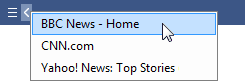
To jump to a particular feed Right click either scroll button to display the list of feeds together with the number of new items and the total number of items. Click on a feed to jump to it. |
|
To jump to a particular feed Right click either scroll button to display the list of feeds together with the number of new items and the total number of items. Click on a feed to jump to it.
|
|
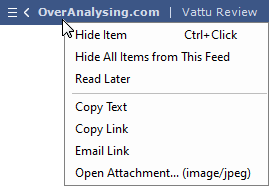
Feed Item Options Right click on a feed item to display options for that item. |
|
Feed Item Options Right click on a feed item to display options for that item.
|







To add and remove RSS feeds
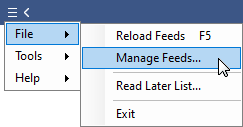
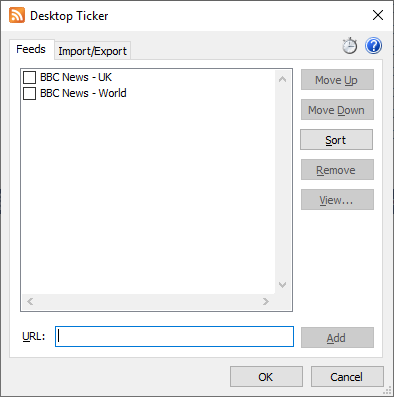
Click the menu button and select File, Manage Feeds. To add a new feed, enter the address of an RSS feed or web page associated with an RSS feed into the URL box and click the Add button. To remove a feed, select it from the list and click the Remove button. Items from unticked feeds will not be displayed in the ticker. The list can be reordered using the Move Up and Move Down buttons. Click here to learn about locating and using RSS feeds.
| Customisation options are accessed using the Tools menu. | 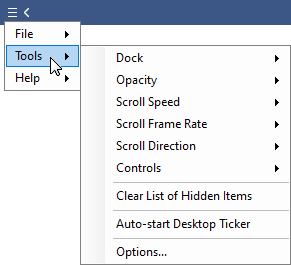 |
Customisation options are accessed using the Tools menu.
|
Dock
The dock options allow you to pin the ticker to the top or bottom of the screen. Once docked, dragging the ticker away from the dock position will undock it.
The float option on the dock menu determines whether the ticker will float above other windows, or will reserve its own space in a similar fashion to the task bar.
Opacity
The opacity options provide a way to reduce the visual impact of the ticker. The smaller the value, the more transparent the ticker is.
Scroll Speed
The speed that the text scrolls through the ticker is set using this menu. The speed can also be altered by pressing the keys Ctrl F or Ctrl S.
Scroll Frame Rate
The scroll frame rate determines how often the ticker display is updated. More often (60 Hz) gives a smoother appearance, less often (30 Hz) may provide better performance on slower computers.
Scroll Direction
This option determines the direction that the ticker scrolls, from right to left or left to right.
Controls
The Controls menu contains options to select which buttons are displayed in the ticker. The selectable buttons are:
Reload feeds: allows feeds to be reloaded on demand
Read later: opens the list of saved items to read later
Scroll feeds: allows the ticker to be scrolled in either direction at high speed
Skip feed: used to move the ticker to the next feed
Minimise: minimises the application window
Close: closes the application
Clear List of Hidden Items
This option will clear the list of items that have been hidden, causing them to reappear.
Auto-start Desktop Ticker (new v1.14)
When enabled, Desktop Ticker will start automatically when the user logs onto the computer.
Options
This option opens a window containing further configuration options. Information about these options is on the next page.
Donate
| If you like Desktop Ticker please consider making a donation via PayPal or take a moment to leave a comment or review on a website. |
If you like Desktop Ticker please consider making a donation via PayPal or take a moment to leave a comment or review on a website.
| Donate your computer's spare power to scientific research. |
 
|
Donate your computer's spare power to scientific research.
Feedback
Please send your comments and suggestions to desktopticker@battware.co.uk